Back to Don's Maps
Back to Maps Page
Map of The Land of Painted Caves by Jean M. Auel - Journeys
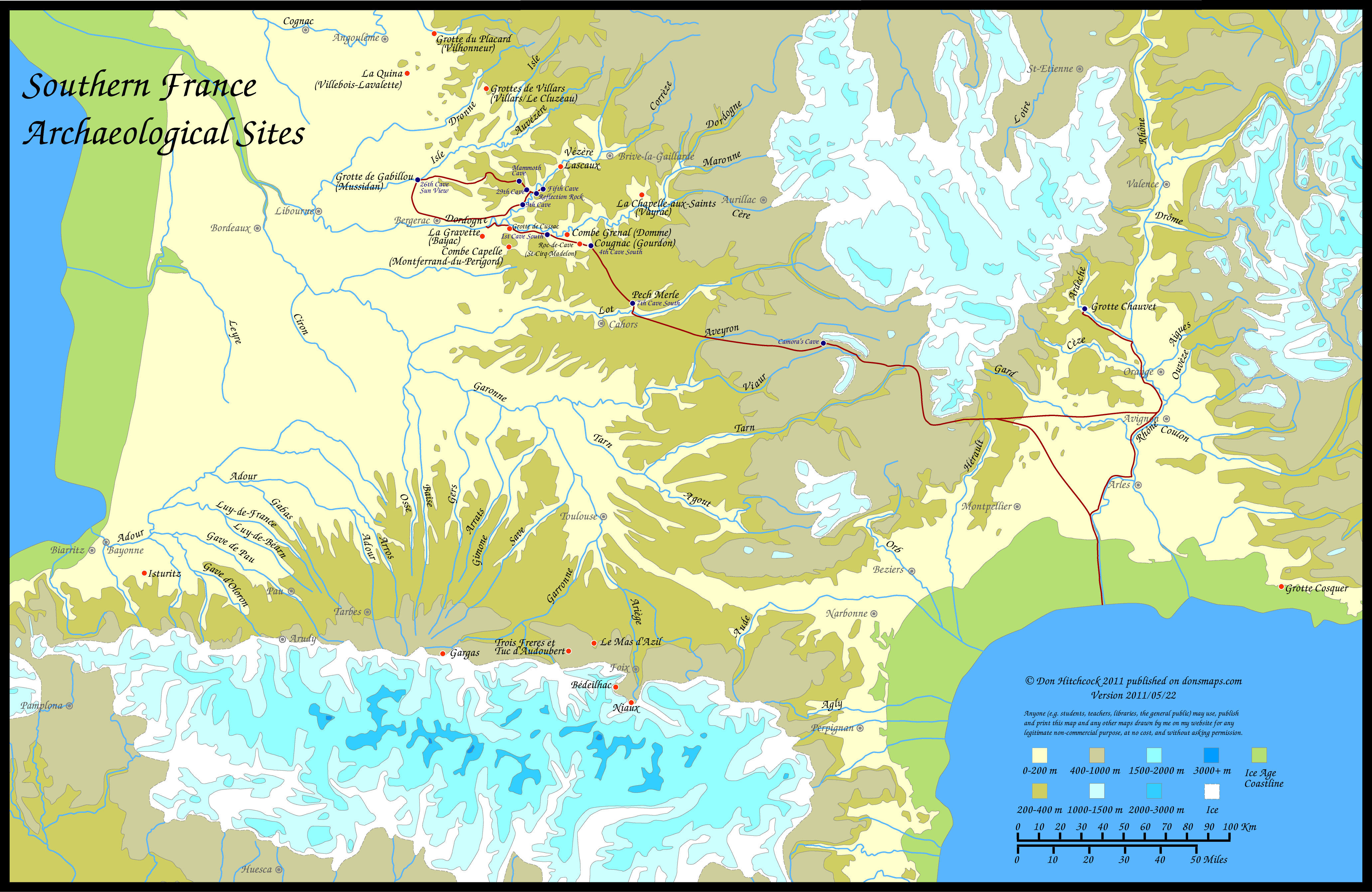
Click on the map to see this full size version, Version 2011.05.22
Map of the travels of Ayla of the Mamutoi and Zelandonii in the book 'The Land of Painted Caves' by Jean Auel. This is the right way up to look at on your screen.
For a printable version, see below.
My thanks to Sky Dancer for the information about the travels, and especially to Wolf of the Steppes for the huge amount of work put into typing out large chunks of the text. It made a huge difference in getting the first version out on time!
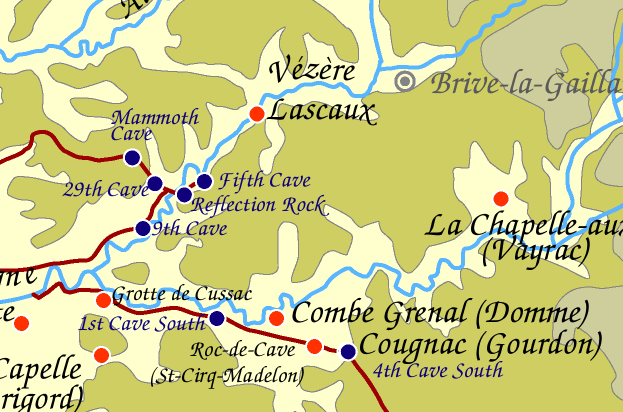
I have now made some minor changes after reading the book. There will be another version of an expanded Zelandonii territory map to include 4th Cave South in the not too distant future. This will give more detail of the area from Lascaux down to the junction of 'The River' with 'The Big River'.
Photo: Don Hitchcock 2011
There are several ways to print this image.
Here is the image as a pdf file which will print on one page. The printable version is turned on its side, as a .pdf, to make it print longways on the page using Adobe Reader. Theoretically Adobe Reader should do that itself, but just in case...
This .pdf file will allow the user to print the map as a single page on all computers and printers using the free Adobe Reader program.
Other programs and browsers may open the file, but it is best to use Adobe Reader to print it, since other programs tend to chop bits off.
Many people find that the above method is the best way to print the file. It should open in Adobe Reader, which is a free program that most people have, but if not you can get it at:
http://www.adobe.com/products/reader/
Another way to print this image is to copy it and paste into a drawing program such as Claris Works, Apple Works, MS Works, Adobe Illustrator, Corel Draw etc. or use the print preview function in later versions of Internet Explorer, which on the Mac is very easy to use.
For Mac: click and hold on the map until you can choose 'copy this image' from the pop up menu.
For PC: Right click on the map and choose 'copy this image' from the pop up menu.
Then paste into a drawing program, and choose a percentage scale from the page set up menu to allow the entire page to fit on one sheet of paper. Try 60%.
Another way to do the same thing perhaps more easily is to click on the 'open map in another window' link below. It opens a page which only contains the map. This should then allow you to more easily save the map (go to the file menu and 'save as source') so that you can open it later from a drawing program.
open map in another window
Some people have trouble getting a non-grainy image. This is usually because they have opened it in photoshop, and then changed the image size.
As soon as you change the *image size* to a smaller value, you are going to get graininess. This is inevitable.
What you have to do instead is to change the way the image is printed, not the image itself. In this way you should have *all* the accuracy of the original.
I have a Mac, but the method should be at least similar on the PC, though the actual commands may differ.
In Photoshop, I go to
File
Page Setup
and change the page orientation to landscape, that is, wider than it is long.
Then I change the scale to 50% or less.
All this alters is the way the information is sent to the printer, not the information itself. What you are doing is telling your printer to print at twice the resolution that it would normally use. If you simply change the image size in Photoshop and print at 100% you will certainly get graininess.
Another method is to print directly from your browser.
Again, this is what I do on a Mac:
Open the image in the browser from the web. (I am using Internet Explorer for the Mac)
Open Print Preview, select shrink images to fit, sideways orientation, and change the % from 100% to 50%.
On my printer, this makes the image just fit on an A4 page, which is about the same size as US letter. You would need to experiment to get the best size for different sized paper. The good thing about print preview is that it shows you exactly how it will print on paper without guesswork. Photoshop is not nearly so user friendly for printing. I avoid printing from Photoshop, even though I use the program extensively for manipulation of images.
Hope this helps.
But *don't* change the image size - this will certainly give graininess.
I'd appreciate feedback on the success or otherwise of these instructions.